Games

LATEST UPDATES
Showing posts with label blogging. Show all posts

Thursday, July 16, 2015

How to highlight and copy text on sites that block it


Every now and then I come across sites on the Internet that prevent you from copying some or all of the text displayed to the clipboard, or even selecting it in first place using the mouse or keyboard.
I noticed this on a bank's site recently for example where I was not allowed to copy the bank account number to the clipboard.
This guide looks at methods to overcome the limitation put in place by websites on the Internet. But first, why do sites implement these restrictions in first place?
While reasons are provided by companies and individuals who implement the functionality on their web properties, the most likely reason is some form of copy protection.
Method 1: Turn off JavaScript
javascript
Most websites use JavaScript to block mouse functionality. If you turn off JavaScript on the site temporarily or even permanently, you will be able to copy text displayed on it using the mouse.
Some websites rely on JavaScript on the other hand which means that you may run into issues doing so. Some may even refuse to display at all when JavaScript is turned off.
  • Firefox users can press F12, there on the preferences icon to disable JavaScript in the menu that opens.
  • Chrome users can disable JavaScript in the Content settings: chrome://settings/content
  • Internet Explorer users can turn off JavaScript in Internet Option > Security > Zone > Custom Level > Active Scripting
  • Opera users can disable JavaScript under Websites in the Opera settings: opera://settings/
Extensions like NoScript can be useful in this regard as they block the execution of scripts as well.
Method 2: The source
source
Another option that you have is to display the source code of the website you are on. Since it is displayed in a plain text editor it is possible to copy anything from it without restriction.
Simply press Ctrl-u while you are on the site to display its source code. This works in most browsers including Firefox, Chrome and Internet Explorer.
It is still necessary to find the text or content that you are looking for in the source. Use Ctrl-f to jump directly to it.
There you may also find links to images and other contents that you could not save or copy.
Method 3: Extensions and scripts
The third and final option is most suitable if you encounter sites regularly that prohibit right-click use or text copying when you are on them, and if the methods outlined above don't work or are not really suitable.
RightToClick for Firefox disables JavaScript annoyances such as forbidding right-clicks or text selection on sites.
RightToCopy for Chrome offers similar features.
You find numerous extensions for these two browsers that remove annoyances on websites.
Summary
Article Name
How to highlight and copy text on sites that block it
Author
Description
Some sites block text selection and copying using JavaScript. This guide looks at three methods that allow you to copy text on these sites anyway.
fg 


Wednesday, July 15, 2015

How to Add Floating Facebook LikeBox For Blogs


Add Floating Likebox To Blogger

  1. Go To Blogger > Design > PageElements
  2. Click on "Add a Gadget"
  3. Choose HTML/JavaScript Widget
  4. Paste the following code inside it,
<script type="text/javascript">
//<!--
$(document).ready(function() {$(".w2bslikebox").hover(function() {$(this).stop().animate({right: "0"}, "medium");}, function() {$(this).stop().animate({right: "-250"}, "medium");}, 500);});
//-->
</script>
<style type="text/css">
.w2bslikebox{background: url("https://blogger.googleusercontent.com/img/b/R29vZ2xl/AVvXsEhrjakz2ujzriyQ_fh0sy1LZk0lFsIsnHLVYQupQen_bdGF80f8wPbVL2kXqKTzA_CFnaqmTOEdCTa9bpZGMpZMwA3plnqjl91ePe6Sk8qv9RcLPu2sWP5xP2ndYyGemg6zV9BdtQpSpEDV/s150/w2b_facebookbadge.pn") no-repeat scroll left center transparent !important;display: block;float: right;height: 270px;padding: 0 5px 0 46px;width: 245px;z-index: 99999;position:fixed;right:-250px;top:20%;}
.w2bslikebox div{border:none;position:relative;display:block;}
.w2bslikebox span{bottom: 12px;font: 8px "lucida grande",tahoma,verdana,arial,sans-serif;position: absolute;right: 6px;text-align: right;z-index: 99999;}
.w2bslikebox span a{color: #808080;text-decoration:none;}
.w2bslikebox span a:hover{text-decoration:underline;}
</style><div class="w2bslikebox" style=""><div>
<iframe src="http://www.facebook.com/plugins/likebox.php?href=http%3A%2F%2Ffacebook.com%2Fbloggertricks&amp;width=245&amp;colorscheme=light&amp;show_faces=true&amp; connections=9&amp;stream=false&amp;header=false&amp;height=270" scrolling="no" frameborder="0" scrolling="no" style="border: medium none; overflow: hidden; height: 270px; width: 245px;background:#fff;"></iframe><span>Widget by:<a href="http://www.MyBloggerTricks.com">My Blogger Tricks</a></span></div></div>

Monday, July 13, 2015

10 Awesome Cursors for Bloggers

You can make your Blog stand out among others by changing your blog mouse cursor so that whenever anybody reaches your blog, their computer default mouse will change to the one you have configured with your blog.
Cursors-for-Bloggers
Here are 10 awesome cursors that can be used on blogger blogs. You only have to follow a few steps to get it working on your blog. Follow the instructions below.

Steps to Install a New Cursor to your Blog

1. Login to your blog “Dashboard” ==> “Templates”.
2. Now search for the closing head tag i.e. </head>.
3. Finally, copy and paste the code of the mouse that you love best before/above </head> tag.
Cursor.1

<style type="text/css">body, a:hover {cursor: url(http://justnaira-css-js.googlecode.com/svn/mouse/Arrow_02.gif), progress;}</style><a href="http://www.justnaira.com" target="_blank" title="Blogger Widgets"><img src="https://blogger.googleusercontent.com/img/b/R29vZ2xl/AVvXsEgMY9aORR9qZ0O_1pMpA2kwR6wqPR1j5nmTwKg1DwQaD-To-EjC0vK2E3ptccrTuz1dk5930WQqG_nrwqyy8ab89y7lz4OocNlkfrEmEwmxCWqwEgplU5RGQ2ndVYmJQaC_L-nUimiK-Q/s1600/www.justnaira.com.png" border="0" alt="Blogger Widgets" style="position:absolute; top: 0px; right: 0px;" /></a>
Cursor.2

<style type="text/css">body, a:hover {cursor: url(http://justnaira-css-js.googlecode.com/svn/mouse/bluemultiglit.gif), progress;}</style><a href="http://www.justnaira.com" target="_blank" title="Blogger Widgets"><img src="https://blogger.googleusercontent.com/img/b/R29vZ2xl/AVvXsEgMY9aORR9qZ0O_1pMpA2kwR6wqPR1j5nmTwKg1DwQaD-To-EjC0vK2E3ptccrTuz1dk5930WQqG_nrwqyy8ab89y7lz4OocNlkfrEmEwmxCWqwEgplU5RGQ2ndVYmJQaC_L-nUimiK-Q/s1600/www.justnaira.com.png" border="0" alt="Blogger Widgets" style="position:absolute; top: 0px; right: 0px;" /></a> 
Cursor.3

<style type="text/css">body, a:hover {cursor: url(http://justnaira-css-js.googlecode.com/svn/mouse/tail2.gif), progress;}</style><a href="http://www.justnaira.com" target="_blank" title="Blogger Widgets"><img src="https://blogger.googleusercontent.com/img/b/R29vZ2xl/AVvXsEgMY9aORR9qZ0O_1pMpA2kwR6wqPR1j5nmTwKg1DwQaD-To-EjC0vK2E3ptccrTuz1dk5930WQqG_nrwqyy8ab89y7lz4OocNlkfrEmEwmxCWqwEgplU5RGQ2ndVYmJQaC_L-nUimiK-Q/s1600/www.justnaira.com.png" border="0" alt="Blogger Widgets" style="position:absolute; top: 0px; right: 0px;" /></a>
Cursor.4

<style type="text/css">body, a:hover {cursor: url(http://justnaira-css-js.googlecode.com/svn/mouse/bounce.gif), progress;}</style><a href="http://www.justnaira.com" target="_blank" title="Blogger Widgets"><img src="https://blogger.googleusercontent.com/img/b/R29vZ2xl/AVvXsEgMY9aORR9qZ0O_1pMpA2kwR6wqPR1j5nmTwKg1DwQaD-To-EjC0vK2E3ptccrTuz1dk5930WQqG_nrwqyy8ab89y7lz4OocNlkfrEmEwmxCWqwEgplU5RGQ2ndVYmJQaC_L-nUimiK-Q/s1600/www.justnaira.com.png" border="0" alt="Blogger Widgets" style="position:absolute; top: 0px; right: 0px;" /></a>
Cursor.5

<style type="text/css">body, a:hover {cursor: url(http://justnaira-css-js.googlecode.com/svn/mouse/apple-tmani.gif), progress;}</style><a href="http://www.justnaira.com" target="_blank" title="Blogger Widgets"><img src="https://blogger.googleusercontent.com/img/b/R29vZ2xl/AVvXsEgMY9aORR9qZ0O_1pMpA2kwR6wqPR1j5nmTwKg1DwQaD-To-EjC0vK2E3ptccrTuz1dk5930WQqG_nrwqyy8ab89y7lz4OocNlkfrEmEwmxCWqwEgplU5RGQ2ndVYmJQaC_L-nUimiK-Q/s1600/www.justnaira.com.png" border="0" alt="Blogger Widgets" style="position:absolute; top: 0px; right: 0px;" /></a>
Cursor.6

<style type="text/css">body, a:hover {cursor: url(http://justnaira-css-js.googlecode.com/svn/mouse/aliendance.gif), progress;}</style><a href="http://www.justnaira.com" target="_blank" title="Blogger Widgets"><img src="https://blogger.googleusercontent.com/img/b/R29vZ2xl/AVvXsEgMY9aORR9qZ0O_1pMpA2kwR6wqPR1j5nmTwKg1DwQaD-To-EjC0vK2E3ptccrTuz1dk5930WQqG_nrwqyy8ab89y7lz4OocNlkfrEmEwmxCWqwEgplU5RGQ2ndVYmJQaC_L-nUimiK-Q/s1600/www.justnaira.com.png" border="0" alt="Blogger Widgets" style="position:absolute; top: 0px; right: 0px;" /></a>
Cursor.7

<style type="text/css">body, a:hover {cursor: url(http://justnaira-css-js.googlecode.com/svn/mouse/Fly_2.gif), progress;}</style><a href="http://www.justnaira.com" target="_blank" title="Blogger Widgets"><img src="https://blogger.googleusercontent.com/img/b/R29vZ2xl/AVvXsEgMY9aORR9qZ0O_1pMpA2kwR6wqPR1j5nmTwKg1DwQaD-To-EjC0vK2E3ptccrTuz1dk5930WQqG_nrwqyy8ab89y7lz4OocNlkfrEmEwmxCWqwEgplU5RGQ2ndVYmJQaC_L-nUimiK-Q/s1600/www.justnaira.com.png" border="0" alt="Blogger Widgets" style="position:absolute; top: 0px; right: 0px;" /></a>
Cursor.8

<style type="text/css">body, a:hover {cursor: url(http://justnaira-css-js.googlecode.com/svn/mouse/Halloween_2.gif), progress;}</style><a href="http://www.justnaira.com" target="_blank" title="Blogger Widgets"><img src="https://blogger.googleusercontent.com/img/b/R29vZ2xl/AVvXsEgMY9aORR9qZ0O_1pMpA2kwR6wqPR1j5nmTwKg1DwQaD-To-EjC0vK2E3ptccrTuz1dk5930WQqG_nrwqyy8ab89y7lz4OocNlkfrEmEwmxCWqwEgplU5RGQ2ndVYmJQaC_L-nUimiK-Q/s1600/www.justnaira.com.png" border="0" alt="Blogger Widgets" style="position:absolute; top: 0px; right: 0px;" /></a>
Cursor.9

<style type="text/css">body, a:hover {cursor: url(http://justnaira-css-js.googlecode.com/svn/mouse/Heart.gif), progress;}</style><a href="http://www.justnaira.com" target="_blank" title="Blogger Widgets"><img src="https://blogger.googleusercontent.com/img/b/R29vZ2xl/AVvXsEgMY9aORR9qZ0O_1pMpA2kwR6wqPR1j5nmTwKg1DwQaD-To-EjC0vK2E3ptccrTuz1dk5930WQqG_nrwqyy8ab89y7lz4OocNlkfrEmEwmxCWqwEgplU5RGQ2ndVYmJQaC_L-nUimiK-Q/s1600/www.justnaira.com.png" border="0" alt="Blogger Widgets" style="position:absolute; top: 0px; right: 0px;" /></a>
Cursor.10

<style type="text/css">body, a:hover {cursor: url(http://justnaira-css-js.googlecode.com/svn/mouse/horse-ani1.gif), progress;}</style><a href="http://www.justnaira.com" target="_blank" title="Blogger Widgets"><img src="https://blogger.googleusercontent.com/img/b/R29vZ2xl/AVvXsEgMY9aORR9qZ0O_1pMpA2kwR6wqPR1j5nmTwKg1DwQaD-To-EjC0vK2E3ptccrTuz1dk5930WQqG_nrwqyy8ab89y7lz4OocNlkfrEmEwmxCWqwEgplU5RGQ2ndVYmJQaC_L-nUimiK-Q/s1600/www.justnaira.com.png" border="0" alt="Blogger Widgets" style="position:absolute; top: 0px; right: 0px;" /></a>

How You Can Easily Backup/Restore Your Blogger Template

It is highly important for every blogger to backup their blog template whenever they about to make any changes on their templates because you are not sure if the changes will crash or corrupt your blog template. In case you encounter any problem in the process of editing your template, you will be able to easily revert it back to the previous one without any ado.
How-to-Backup-or-Restore-Blogger-Template
Blogger has made it very simple to back up and restore your blog template; this article will explain how it can be done easily.

How You Can Easily Backup/Restore Your Blogger Template

==> Log in to your Blogger Dashboard, select Template and then click on Backup/Restore button on the top right corner [as shown in the image below]
Backup-or-Restore-TemplateBackup-or-Restore-Blogger-Template
==> A box will appear with the options to Download Full Template i.e. to download your blog template on your machine and Browse to restore the templates downloaded earlier. [as shown in the image below]
Procedure-to-Backup-or-Restore-Blogger-Template

How to Redirect 404 Error Page to Homepage in Blogger

==> Log in to your Blogger Dashboard, then go to Settings >> Search Preferences >> Custom Page Not Found (Under Errors and redirections).
404-error-page-settings
==> Click on edit, paste the code below into the box and then Save changes

Sorry, the page you were looking for in this blog does not exist. You will be redirected to homepage shortly.
<script type = "text/javascript">
//Blogger 404 Redirect v1.0 by Olusegun(Justnaira.com)
JN_redirect = setTimeout(function() {
location.pathname= "/"
}, 5000);
</script>

Customizing the Redirection Code

  • • You can change the message on the top (i.e. Sorry, the page you were looking for in this blog does not exist. You will be redirected to homepage shortly) to anything you like
  • • The 5000 in the code represents delay in milliseconds. You can change the 5000 to any value. Changing the value to zero simply means your 404 error page will be redirected to your homepage or any desired page without any delay.
  • • If you are willing to redirect your blog 404 error page to another page other than your home page, just replace pathname to href and / to the url of the page.

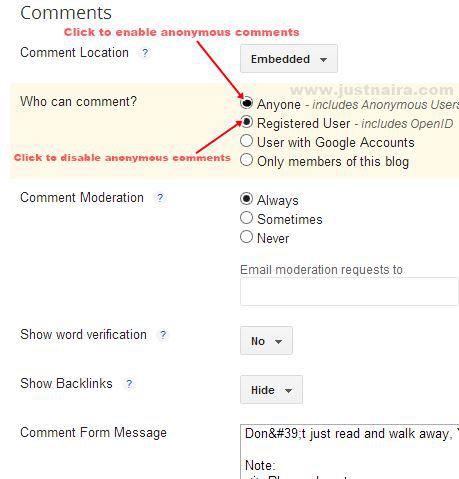
Steps to Enable/Disable Anonymous Comments on Blogger


  1. Sign in to your blogger dashboard and select the blog you want to enable/disable Anonymous Comments on
  2. Go to Settings >>Posts and Comments. You should see something similar to the picture below:
  1. Set the “Who can Comment” option to “Anyone” (if you want to enable anonymous comments on your blog) or “Registered User” (if you want to enable anonymous comments on your blog) and click on Save.
Go to any post comment section on your blog to confirm the changes.

Friday, February 15, 2013

How to Copy Text & Images From Right Click Disabled Websites


Recently, a post was shared on this blog on How to Disable Right Click from a Blog, but today I want to share another post that teaches how to copy from websites and blogs that has disabled copying of text and images from their blog/website.


At times you might come across articles you love online to save on your computer or share with others but you’re unable to copy it because the blog administrator or webmaster has disable copying text or images from such blog/website. These bloggers/webmasters only provide text to be read only and not to be copy. Today, I will share 3 different means that you can easily use to copy text and images from click disabled websites/blog.

Ways to Copy from a Right Click Disabled Blog/Website

Most bloggers/webmasters uses JavaScript to disable right click option on their blog/website, so if JavaScript disabled browser is used on such blog/website, copying mode will be activated lol. Though this is not the only means to copy from a right click disabled blog, here are the lists of other means to copy from Right Click protected blog/website:
Disable JavaScript in Browser
Using Proxy Sites
Accessing the source code of the blog/website

Method 1: Disabling JavaScript in Browser [Firefox]

In Chrome browser, you can quickly disable JavaScript by going to settings. See the screenshot for better explanation:
If you’re using Firefox browser, you can easily disable your JavaScript by going to Options >> Content >> Un-tick “Enable JavaScript” box. See the Screenshot below for better understanding:


Now restart and access the website again to copy the image and text you want to copy. If you’re using another browser different from Firefox all you need to do is to disable your JavaScript. Make sure you enable it back once you’re done with your operation.

Method 2: Using Proxy Sites

Millions of proxy site are on the internet that you can use to disable JavaScript while browsing. Here are list of some working and best proxy sites that you can use. An example of a proxy site that that offer such feature is HideMyAss.com. You can see how it can be done from the shot below:


There are many proxy sites, which let you disable JS while browsing. All you need to use those proxy sites, which offer such features and you can quickly use right-click on click disabled sites.

Method 3: Using Source Code

You can use browser view source option to copy text and image link from a site. To view the source of any website/blog, all you need to do is to open your browser and then type “view-source:” before the page link you want to access. It should look like this:

view-source:http://www.justnaira.com

Now you can copy the text and image link you need.

Do you have any other means other than the three explain here? If yes, don’t hesitate to share it with others via the comment box below.
 
⬆
Top